How to Share an Itinerary with Others
Within an existing trip, you can invite other users to the trip, which will enable those users to collaborate in the trip planning and be up to date with the group's latest travel plans. Once they accept the trip invite, they will be able to add itinerary items, see trip flights, and use the finance tools!
Features
Step 1: Find the Trip You Want to Invite People To
In the home page, scroll down until you find and click the trip you'd like to invite someone to.
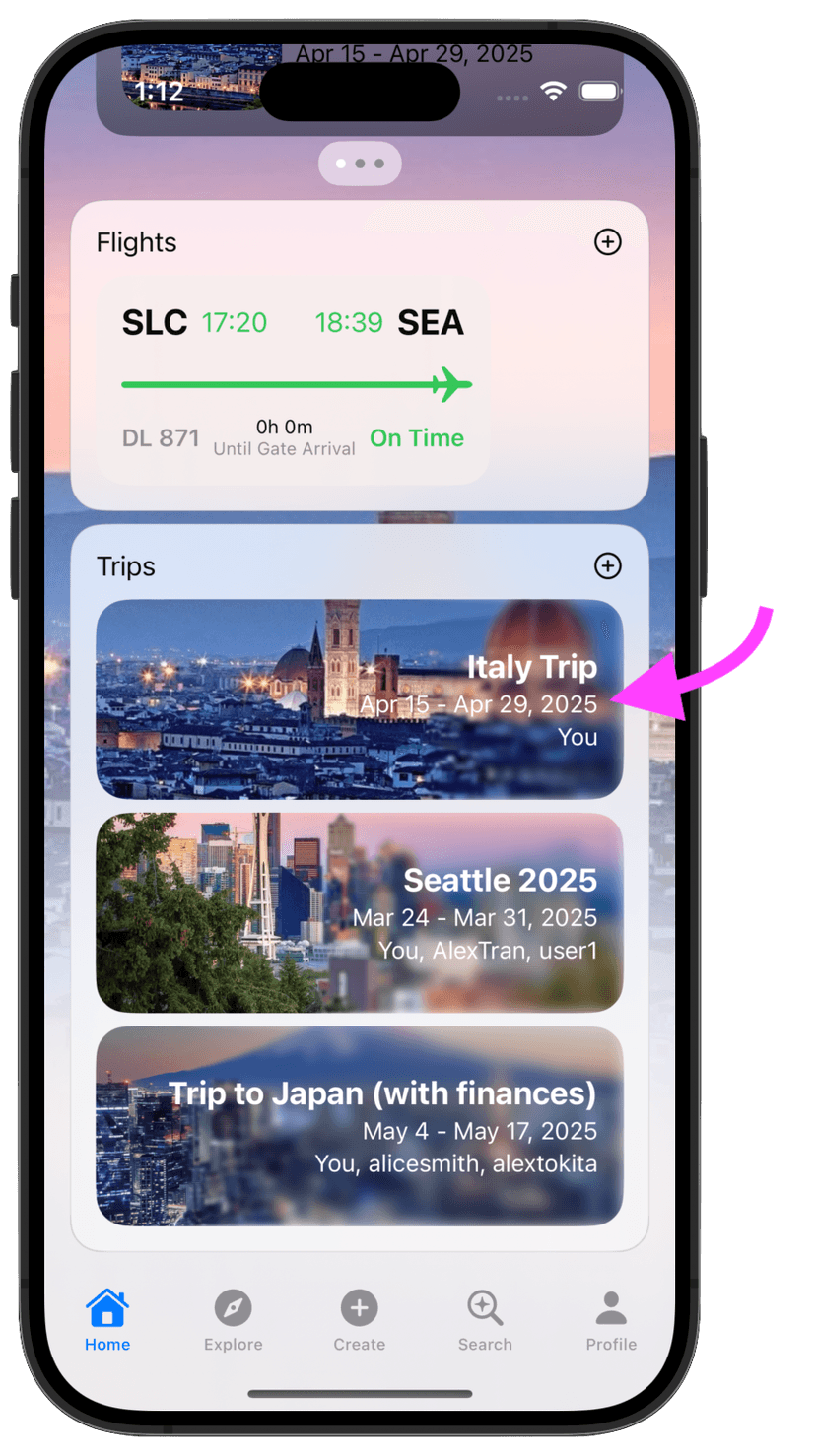
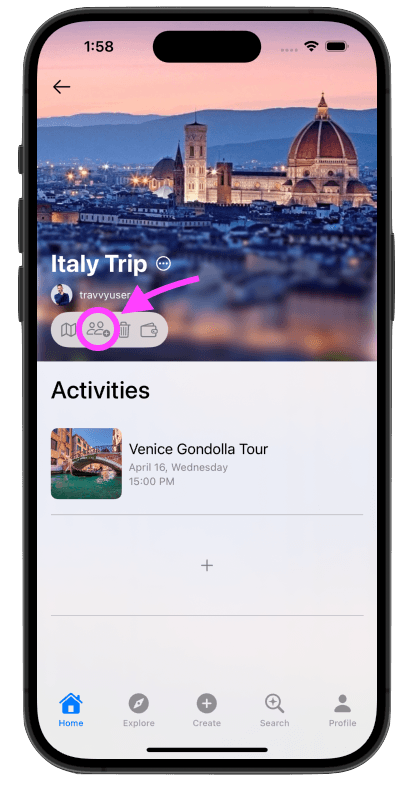
Step 2: Click the Add Collaborators Icon
Within the trip view, click the icon that depicts two people and a plus sign.
Step 3: Search for the Username of the User to Invite
Begin typing the username of the user you want to invite. The app will automatically search for users with that username. Once you see the user you want to invite, click the "Invite" button next to their username.

Step 4: (On the Receiving Side) View the Invite
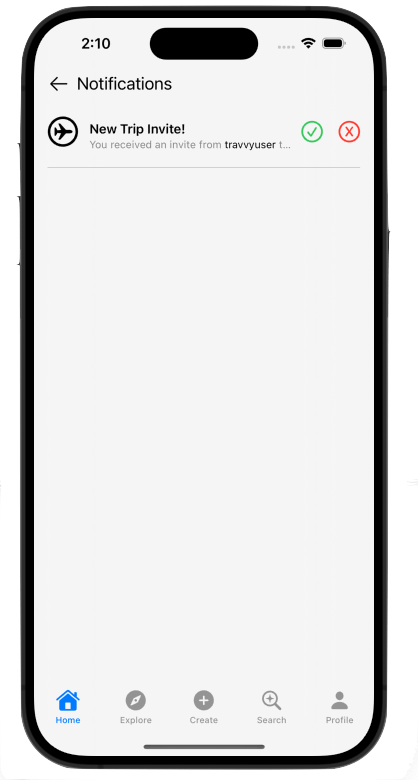
For the person receiving the trip invite, they will see a notification in their homescreen. Click this notification to view the invite.

Step 5: (On the Receiving Side) Accept the Invite
For the person receiving the trip invite, they can now accept the invite by clicking the checkmark. This will add them as a collaborator for the trip.